
 Make a call
 Prospectus
 Email
Email
 Whatsapp
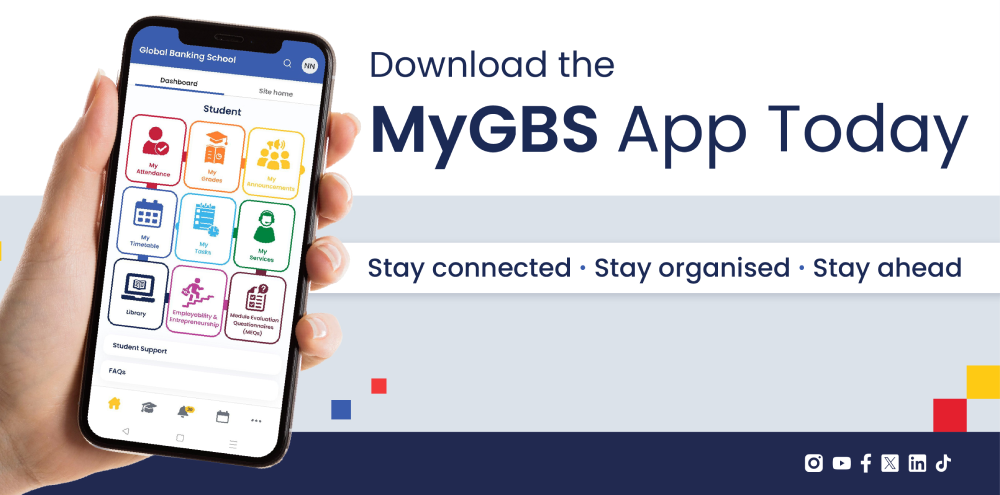
The MyGBS app is a consolidated digital platform designed to enhance the student learning experience at Global Banking School (GBS). It brings together key academic and support services such as attendance, grades, announcements, surveys, and support requests into one easy-to-use mobile application.
Introducing the MyGBS app: Your new way to stay connected, informed and supported
Discover the MyGBS app, created to bring your timetable, grades, attendance, support services and student resources together in one simple space to support your study experience.
For many students, life moves quickly. You are balancing classes with work, family responsibilities, commutes and everything else that fills a week. Keeping track of your timetable, grades, attendance and campus support should not be a source of stress. It should make life easier.
It is for this reason that we are excited to introduce the MyGBS app. It brings your academic world together in one place, giving you practical tools to stay organised and connected to your course from anywhere. Whether you are on campus, on the bus or between shifts, everything you need sits right on your phone.
MyGBS app is now live for all GBS students. In this guide, we will walk you through what the app is, why it matters and how to make the most of each feature. You will also find simple steps for navigating the app and download links so you can get started straight away.
What is the MyGBS app?
The MyGBS app is your central hub for everything you need as a GBS student. Instead of checking multiple systems or searching through emails, you will find your key academic information in one simple, easy-to-use place. Your attendance, grades, timetable, announcements, library resources and student services are all accessible from the moment you open the app.
It is designed to make your day easier. You can check your progress, stay updated, plan ahead and find support without any confusion or delay. In everyday terms, the app helps you study smarter and manage your time with more confidence, wherever you are.
How the MyGBS app supports your student journey
Every student’s life is different. While some students are returning to education after a long break, others are balancing work and childcare, and some are managing the pace of a new academic level. In the middle of all this, you need information that is easy to find, clear to understand and available whenever you need it. The MyGBS app has been built with this reality in mind, giving you practical support that fits into your life. Here is how the app strengthens your day-to-day study experience:
- Helps you stay on track with clear, instant information: You can check your attendance, grades and timetable in seconds, removing the guesswork and helping you understand exactly where you stand.
- Reduces stress during busy weeks: Whether you are juggling shifts or personal commitments, the MyGBS app keeps all your essential updates in one place, so nothing gets lost, missed or overlooked.
- Supports better planning and time management: With quick access to deadlines, sessions and announcements, you can plan your week with more certainty and make adjustments before things become overwhelming.
- Connects you to support when you need it most: From welfare services to careers guidance, the app places student support within reach, encouraging you to seek help early and confidently.
- Builds confidence in your academic progress: Seeing your information clearly laid out will help you make informed decisions about your workload, attendance and next steps, giving you more control over your learning journey.
How to use the MyGBS app
Each feature on the MyGBS app has been developed to give you the right information at the right time. Whether you need to check something quickly between classes or spend a few minutes planning your week, every feature is simple, clear and easy to access. The guide below walks you through each area of the app step by step, with short explanations to help you understand how it supports your day-to-day student experience.
Step 1: Download the MyGBS app
Getting the app on your phone is the easiest way to keep your timetable, attendance, grades and updates in one place. It takes less than a minute to install and once you sign in with your GBS credentials, you are ready to use it.
Download for Android on the Google Play Store
You can download the app by clicking here or opening the Google Play Store and searching for MyGBS.
- Tap on Install.
- Open the app and sign in with your GBS username and password.
- Allow notifications, so you can receive reminders and important alerts.
Download for iOS on the Apple App Store
You can download the app by clicking here or opening the Apple App Store and searching MyGBS.
- Tap on Get.
- Open the app and sign in with your GBS username and password.
- Allow notifications to receive reminders and important alerts.
Step 2: Familiarise yourself with the dashboard
Once you sign in, you will land on the main dashboard. Here you will find the tiles that take you to your core features:
- Attendance
- Grades
- Announcements
- Timetable
- Tasks
- Services
- Library
- Employability & Entrepreneurship
- Module Evaluation Questionnaires (MEQs)
Depending on your device, each tile may look slightly different, but it will connect you directly to their respective features.
If you have trouble signing in, you can contact moodlesupport@globalbanking.ac.uk for help.
Step 3: View your attendance
Your attendance is easy to access and monitor through the app. This gives you a simple way to monitor your engagement throughout your course. How to view it:
- Tap on the My Attendance icon on the dashboard.
- You can view and monitor your attendance from this screen.
Step 4: View your grades
You can quickly check the grades uploaded for your modules. How to view them:
- Tap on the My Grades icon on the dashboard.
- You can view your grades per module on this screen.
Please note: These are not your final grades and are subject to change.
Step 5: View your announcements
Announcements are shared with you through a dedicated section of the app. How to view them:
- Tap on the My Announcements icon on the dashboard.
- You can click on each announcement to view its full details.
Step 6: View your timetable
You can check your timetable directly through the app. How to view it:
- Tap on the My Timetable icon on the dashboard.
- Select OK when prompted.
- You will be taken to EventMap to sign in and view your timetable.
Step 7: View your tasks
Your upcoming tasks are organised in one place, making them easy to track. How to view them:
- Tap on the My Tasks icon on the dashboard.
- You will see your pending tasks and deadlines.
Step 8: View your student services
You can reach key student services directly through the app. How to view them:
- Tap on the My Services icon on the dashboard.
- You will find information about the available services, such as welfare support, career support and student events.
Step 9: View your library resources
Library resources can be accessed from the main dashboard. How to view them:
- Tap on the Library icon.
- You can view your library resources in this section.
Step 10: View your employment and entrepreneurship resources
Your employability tools and entrepreneurship support are gathered in one area of the app. How to view them:
- Tap on the Employment & Entrepreneurship icon on the dashboard.
- You can view your career and employability resources and services.
Step 11: View your MEQs
Your Module Evaluation Questionnaires (MEQs) are accessible through a dedicated icon. How to view them:
- Tap on the MEQ icon on the dashboard.
- Once you have signed in, you can view your MEQs.
Step 12: How to view the FAQs
The app includes a section where you can find frequently asked questions. How to view them:
- Tap on the FAQ section on the dashboard.
- You can access the full list of FAQs here.
Step 13: Navigating the footer bar
The footer bar offers quick access to core functions. What each icon does:
- All your push notifications (such as class reminders and absences) will appear in the notifications area.
- You can access global search, calendar, site blogs, tags and a QR code scanner.
- One icon takes you back to the main dashboard.
- Another icon lets you view your courses.
- Another allows you to manage your chats with classmates and lecturers.
Step 14: Contact information
For any questions or assistance, please contact:
moodlesupport@globalbanking.ac.uk
The MyGBS app has been created to make your student journey more manageable, more connected and more supported. From your timetable and grades to student services and library resources, everything is now organised in a clearer and more accessible way. You have the tools to stay informed and make steady progress, no matter how busy your week becomes.
If you ever need help, you can always reach out to the GBS support team through the app or via email.
Download the MyGBS app today and keep your studies within easy reach, wherever you are, and whenever you need them.
Frequently asked questions about the MyGBS app
The app is available to all current GBS students. Access will be granted through Single Sign-On (SSO) using institutional login credentials.
Q3. What features does the app include?
The MyGBS App provides access to:
- Attendance tracking with a Red-Amber-Green (RAG) rating system.
- Grades for each module (may be subject to change).
- Announcements and key academic updates.
- Student services.
- Library access through EBSCO and related academic resources.
- Employability tools such as Abintegro and Handshake.
- Module Evaluation Questionnaires (MEQs).
- Timetable
- Tasks tab showing upcoming deadlines and pending actions.
- Push notifications for key reminders and events.
- Student support via JIRA
- Student feedback section (icon-based ratings and textual feedback).
The app is available for download on both Google Play and the Apple App Store. Once installed, students can log in using their GBS credentials via Single Sign-On (SSO).
Q5. How will my attendance be shown?
Attendance will be displayed in a dedicated tile showing your attendance, including your overall average and consecutive absences. The RAG (Red-Amber-Green) system helps identify attendance risk levels.
Q6. Are my grades final on the app?
No, As communicated in the user guide, the grades shown are not final and may change after internal verification.
Q7. Will the app send me notifications?
Yes, You will receive push notifications for important updates, such as upcoming classes, assignment deadlines, absences, new announcements and surveys.
Q8. What should I do if my timetable does not appear?
Make sure you sign in when redirected to EventMap. If the timetable still does not appear, contact moodlesupport@globalbanking.ac.uk
Q9. Can I submit support requests through the app?
Yes, The app includes a Student Support section linked to JIRA, allowing you to raise and track support requests directly.
Q10. How do I give feedback about the app?
You can share feedback directly within the app by clicking the three dots located on the bottom right side. Simply select one of three icon options (happy, neutral, or unhappy) and add your comments. Feedback will be reviewed to help improve future versions.
Q11. Is my personal data safe?
Yes, The app adheres to GBS’s data protection and privacy policies. All integrations and data exchanges are secure, and only authorised users have access via institutional credentials.
Q12. How can I report an issue with the app?
If you experience a technical issue, please raise a support ticket via the Student Support section in the app or contact Moodle support for assistance.
Q13. Who do I contact for technical support?
For any technical issues, please raise a JIRA ticket, which is available via the Student Support section on the MyGBS app.